Sharing QR codes with participants in CONREGO
QR codes are one of the tools that help event organizers control access and track attendance. In the CONREGO system, you can share them automatically and in various formats - depending on the nature of your event and participants’ preferences.
QR code as a TAG in email or SMS
- Go to Tools > Communication.
- Edit an existing message or create a new one.
- Add a Text block.
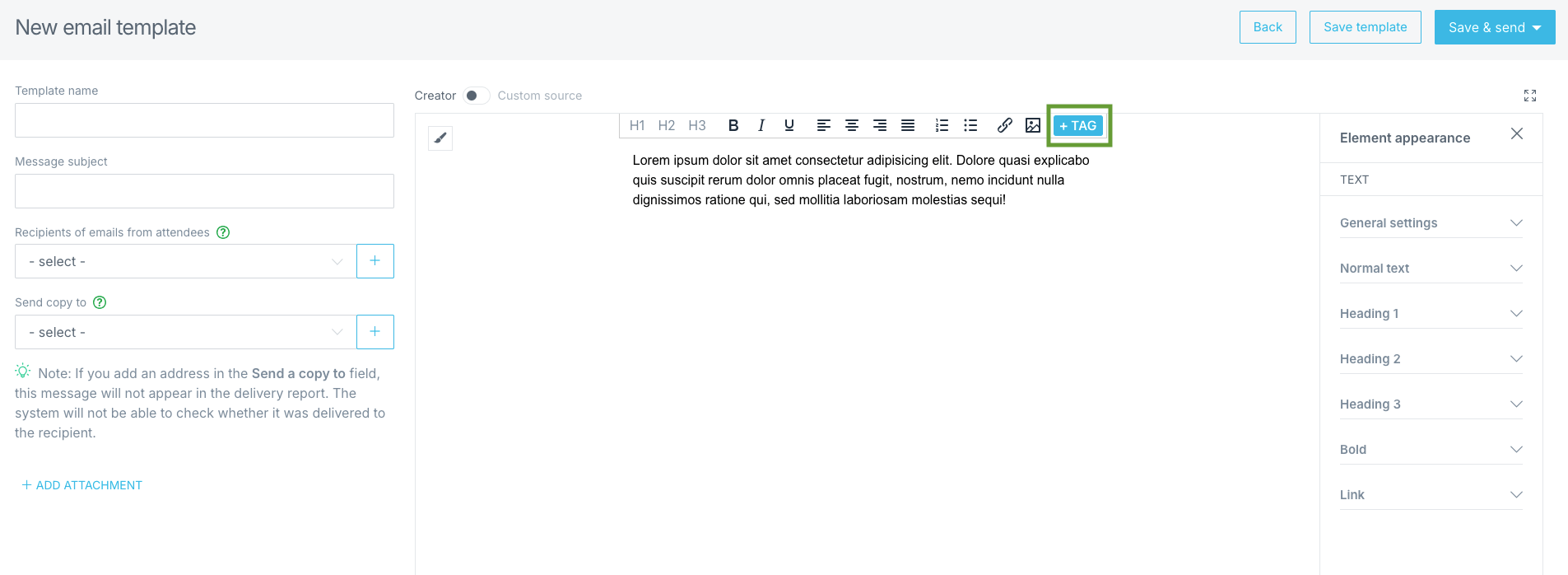
- In the text editor, click the blue +TAG icon.
- In the Add special tags section, select QR CODE.
- Place the tag anywhere in the message content.
QR code in a personalized PDF added as an email attachment
- Create the PDF in Tools > Document Personalization.
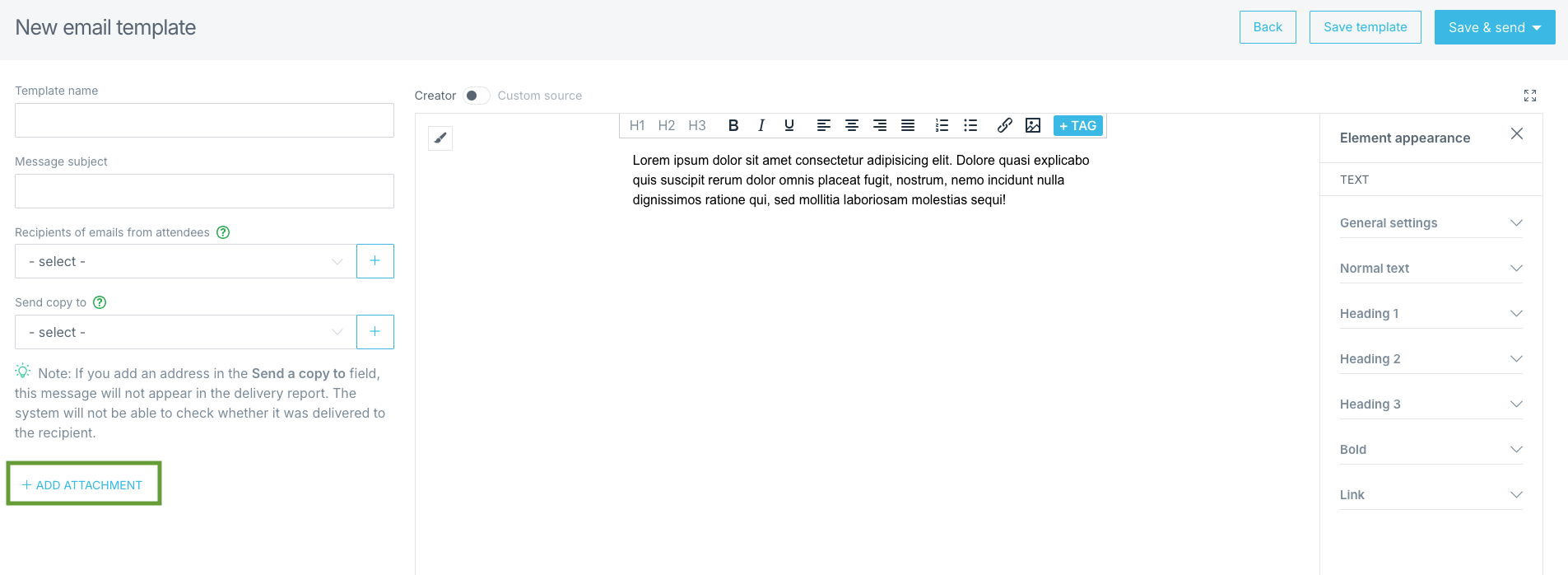
You’ll find step-by-step instructions in this article: How to create badges? - You can then add the personalized PDF as an attachment to an email during email template editing.
How to send a QR code to participants?
It depends on the type of event and your communication plan. The most common scenarios are:
1. Free registration
You can include the QR code directly in the registration confirmation email. The participant receives all relevant information immediately after signing up.
2. Paid registration
It's best to send the QR code only after payment confirmation - in the message confirming that the registration is complete and paid. This way, you ensure that the ticket is only delivered when everything is settled.
3. Additional message
Sometimes it’s worth planning a separate email or SMS with the QR code - e.g. one day before the event. This serves as a reminder and makes it easy for participants to quickly find their ticket on their phone.
What happens after scanning the code?
After the QR code is scanned using the CONREGO Check-In app or browser-based Check-In, the system:
- marks the participant as present (you can monitor this in reports),
- may display registration form and offer details to the check-in operator.
Additional uses for QR codes
QR codes can also offer extended functionality:
- Redirect to a website - scanning the code with a phone takes the participant to a designated page
- Download a contact card (VCF) - scanning lets the participant save a contact to their phone